
Documentation Index
Fetch the complete documentation index at: https://docs.morf.health/docs/llms.txt
Use this file to discover all available pages before exploring further.

Getting Started
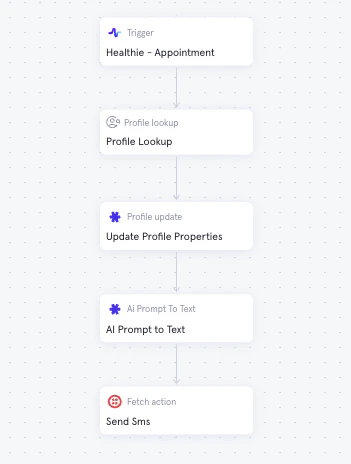
Unlock instant, context-aware text generation using Morf’s AI Prompt to Text action directly in your automation. Configure the node’s prompts, and use data from the event, the profile and outputs from earlier steps as context to automatically generate the text you need, right when you need it. Use the output in downstream nodes to…- generate structured summaries from form responses and populate visit notes in your EHR
- send personalized follow-up or reminder texts to patients that write themselves
- capture high-level appointment takeaways in your EHR to automate the creation of appointment follow-up tasks for staff
- …plus anything else you can dream up!
Get started
To begin using AI generated text in Morf:- Add the AI Prompt to Text node to your workflow when you want text generated.
- Give the node a descriptive object name (i.e.
appointment_summaryorconfirmation_text). You’ll use this object name when referencing the output in downstream nodes. - Map the Prompts parameter to an array. Add all prompts as static values in individual array entries. The number of prompts will not change the response format — one text string is generated per node.
- To use the AI generated text later in the workflow, reference the node’s
response(i.e.appointment_summary.response,confirmation_text.response).
Parameters
Result Object Field Details
You can use the result of the action’s data as inputs to downstream workflow actions. Each fetch action requires a result object key to be specified which will nest the action’s result data inside the downstream data context in the Workflow. Here we demonstrate how to refer to this data using the prefix$result_object_key.