> ## Documentation Index
> Fetch the complete documentation index at: https://docs.morf.health/docs/llms.txt
> Use this file to discover all available pages before exploring further.
# Basic View
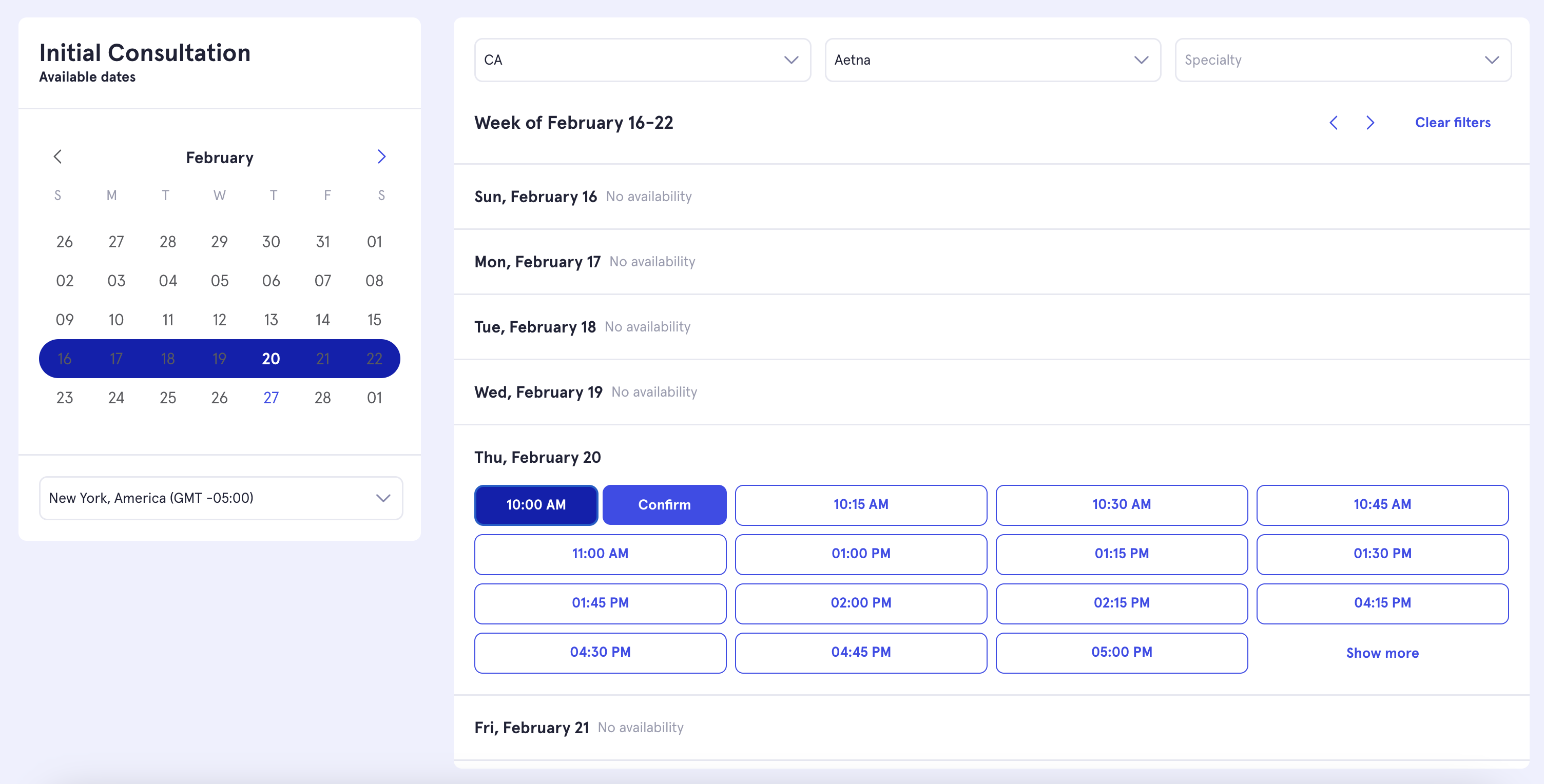
Morf’s direct scheduling links let you create a custom booking page for your patients. The link shows available time slots across multiple providers in a simple `Basic view`, letting patients choose a time that works for them without needing to pick a specific provider.
 ## Constructing a Scheduling Link
To create a custom scheduling link that shows the correct availability for your patients, start with the base scheduling URL:
`https://questions.morf.health/schedule/basic-view`
Then, add the following parameters to customize the link:
### Required Parameters
1. **`morfOrgId`**\
The Morf Organization ID. You can find this in your admin dashboard or contact us for assistance.
2. **`schedulingApplication`**\
The scheduling application you're using to manage provider availability. Choose either `HEALTHIE` or `ACUITY`.
3. **`appointmentTypeId`**\
The ID for the appointment type in your scheduling application (e.g., "320278" for Healthie).\
If you're unsure about the appointment type IDs, provide the appointment type names and we can retrieve them for you.
4. **`patientId`**\
This ID helps Morf identify the patient. If you’re using **Formsort**, we can use the responder UUID to uniquely identify the patient profile. If scheduling for an existing patient, include their [Morf UUID](/docs/morf_dashboard/profiles) (this is your main profile ID, which is reflected in the morf admin dashboard as the "customer" ID).
If you're unsure where to find this, let us know, and we can guide you.
If any required parameter is missing or invalid, an error message will appear on the screen. If you're unsure why this is happening, you can send us the `Request ID`, and we'll help you debug the issue.
## Constructing a Scheduling Link
To create a custom scheduling link that shows the correct availability for your patients, start with the base scheduling URL:
`https://questions.morf.health/schedule/basic-view`
Then, add the following parameters to customize the link:
### Required Parameters
1. **`morfOrgId`**\
The Morf Organization ID. You can find this in your admin dashboard or contact us for assistance.
2. **`schedulingApplication`**\
The scheduling application you're using to manage provider availability. Choose either `HEALTHIE` or `ACUITY`.
3. **`appointmentTypeId`**\
The ID for the appointment type in your scheduling application (e.g., "320278" for Healthie).\
If you're unsure about the appointment type IDs, provide the appointment type names and we can retrieve them for you.
4. **`patientId`**\
This ID helps Morf identify the patient. If you’re using **Formsort**, we can use the responder UUID to uniquely identify the patient profile. If scheduling for an existing patient, include their [Morf UUID](/docs/morf_dashboard/profiles) (this is your main profile ID, which is reflected in the morf admin dashboard as the "customer" ID).
If you're unsure where to find this, let us know, and we can guide you.
If any required parameter is missing or invalid, an error message will appear on the screen. If you're unsure why this is happening, you can send us the `Request ID`, and we'll help you debug the issue.
 ### Optional Filter Parameters
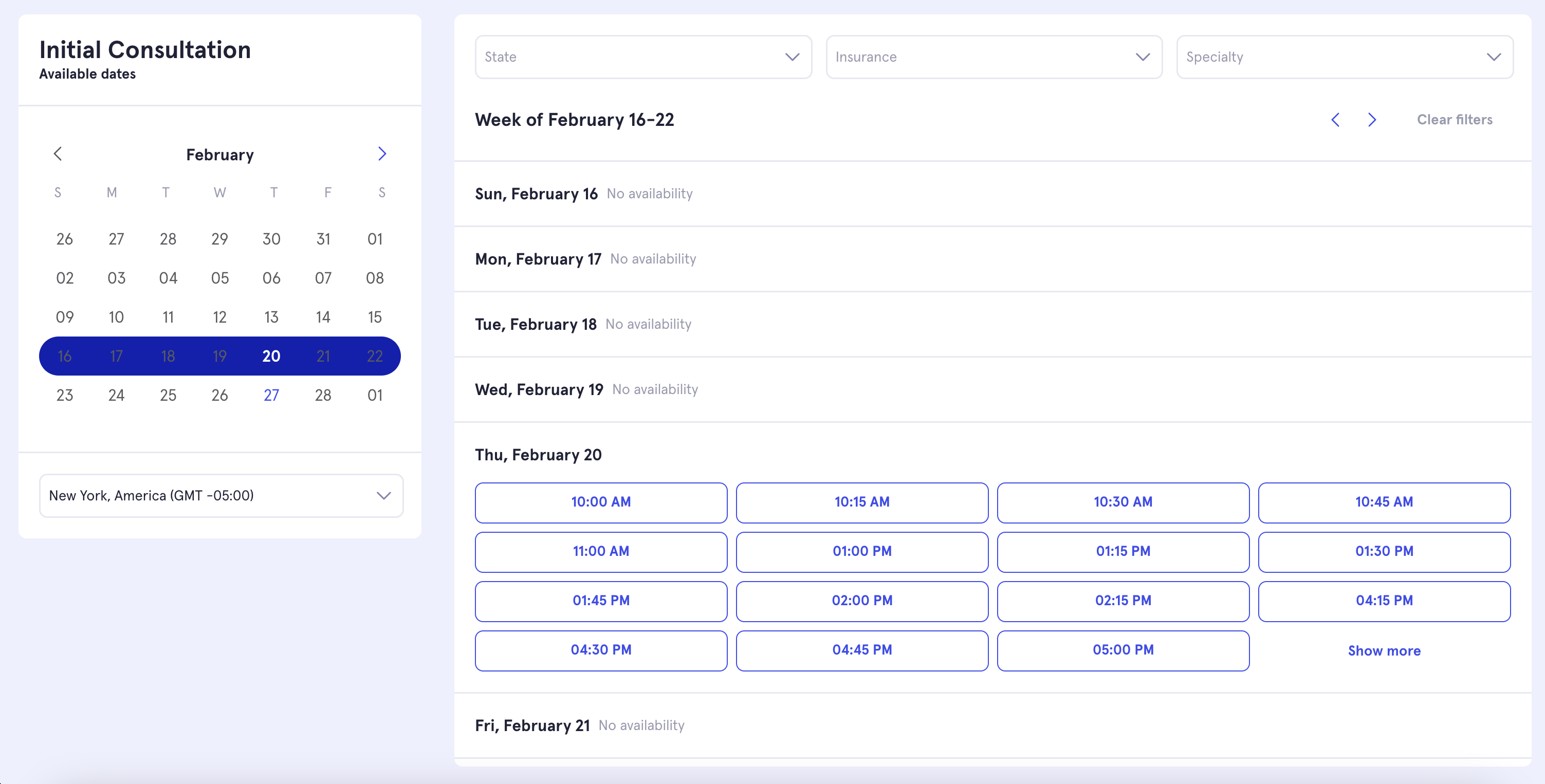
If you want to filter the providers shown based on patient preferences, you can add any of the following parameters:
* **`state`** → string\
Filter by state.
* **`insurance`** → string\
Filter by insurance payer.
* **`specialties`** → string or array of strings\
Filter by provider specialties.
* **`internalTags`** → array of strings\
Filter by internal tags.
* **`contactType`** → string (only for `HEALTHIE`, **contact\_type** in HEALTHIE)\
Filter by contact type. Can be one of:
* `Secure Videochat`
* `In Person`
* `Phone Call`
* **`locationId`** → string (only for `HEALTHIE`, **appt\_loc\_id** in HEALTHIE)\
Filter by location ID.
* **`randomizeOrder`** → boolean\
When a time slot has multiple available providers, this controls which provider is selected. By default, the provider with the lowest ordering index is chosen. Set to `true` to randomly select among the available providers for that slot instead.
### Optional Filter Parameters
If you want to filter the providers shown based on patient preferences, you can add any of the following parameters:
* **`state`** → string\
Filter by state.
* **`insurance`** → string\
Filter by insurance payer.
* **`specialties`** → string or array of strings\
Filter by provider specialties.
* **`internalTags`** → array of strings\
Filter by internal tags.
* **`contactType`** → string (only for `HEALTHIE`, **contact\_type** in HEALTHIE)\
Filter by contact type. Can be one of:
* `Secure Videochat`
* `In Person`
* `Phone Call`
* **`locationId`** → string (only for `HEALTHIE`, **appt\_loc\_id** in HEALTHIE)\
Filter by location ID.
* **`randomizeOrder`** → boolean\
When a time slot has multiple available providers, this controls which provider is selected. By default, the provider with the lowest ordering index is chosen. Set to `true` to randomly select among the available providers for that slot instead.
 ### Optional Hide Parameters
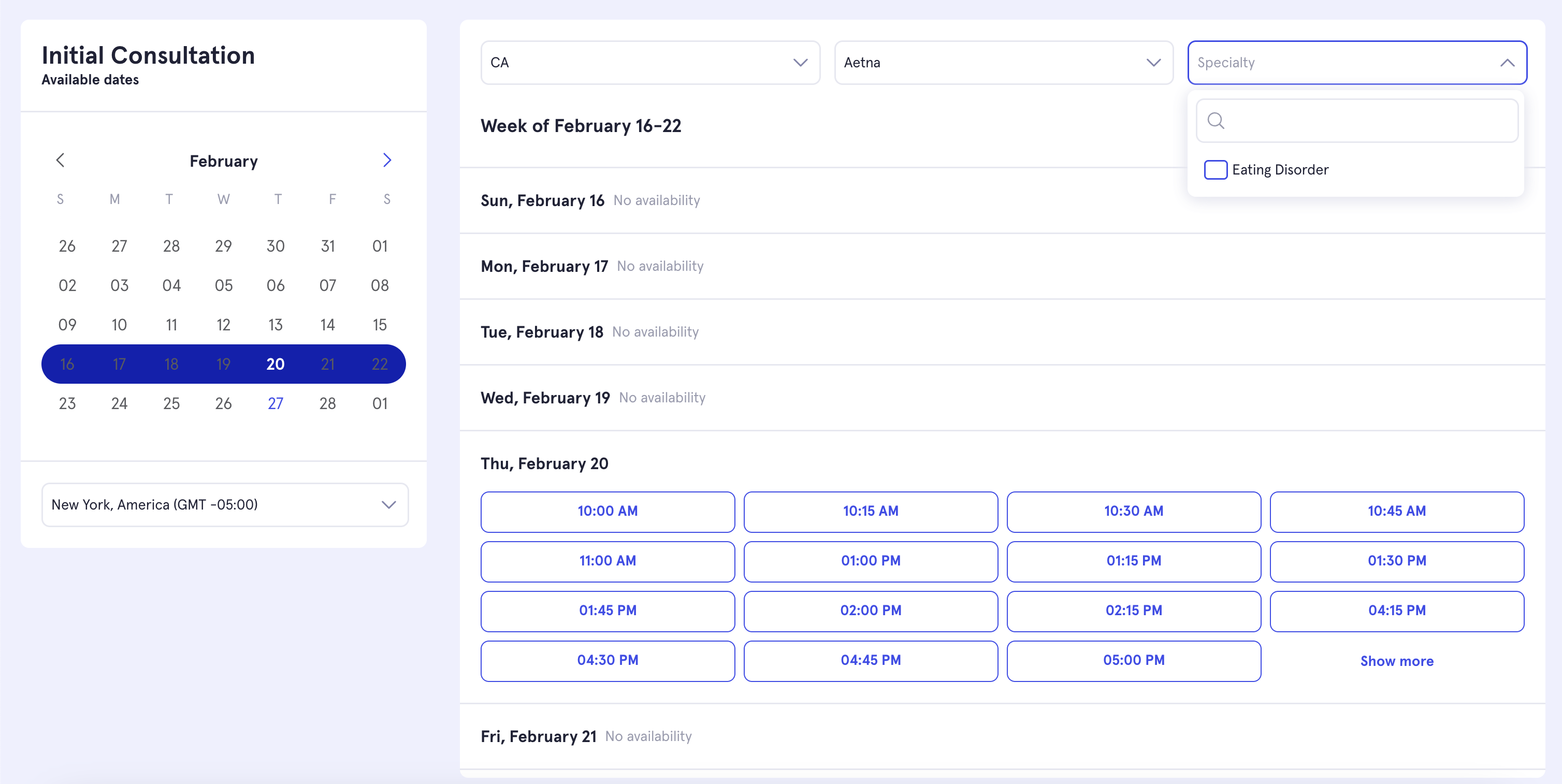
To hide specific filter dropdowns in the scheduling UI, use the following parameters:
* **`hideState`**
* **`hideSpecialties`**
* **`hideInsurance`**
### Optional Hide Parameters
To hide specific filter dropdowns in the scheduling UI, use the following parameters:
* **`hideState`**
* **`hideSpecialties`**
* **`hideInsurance`**
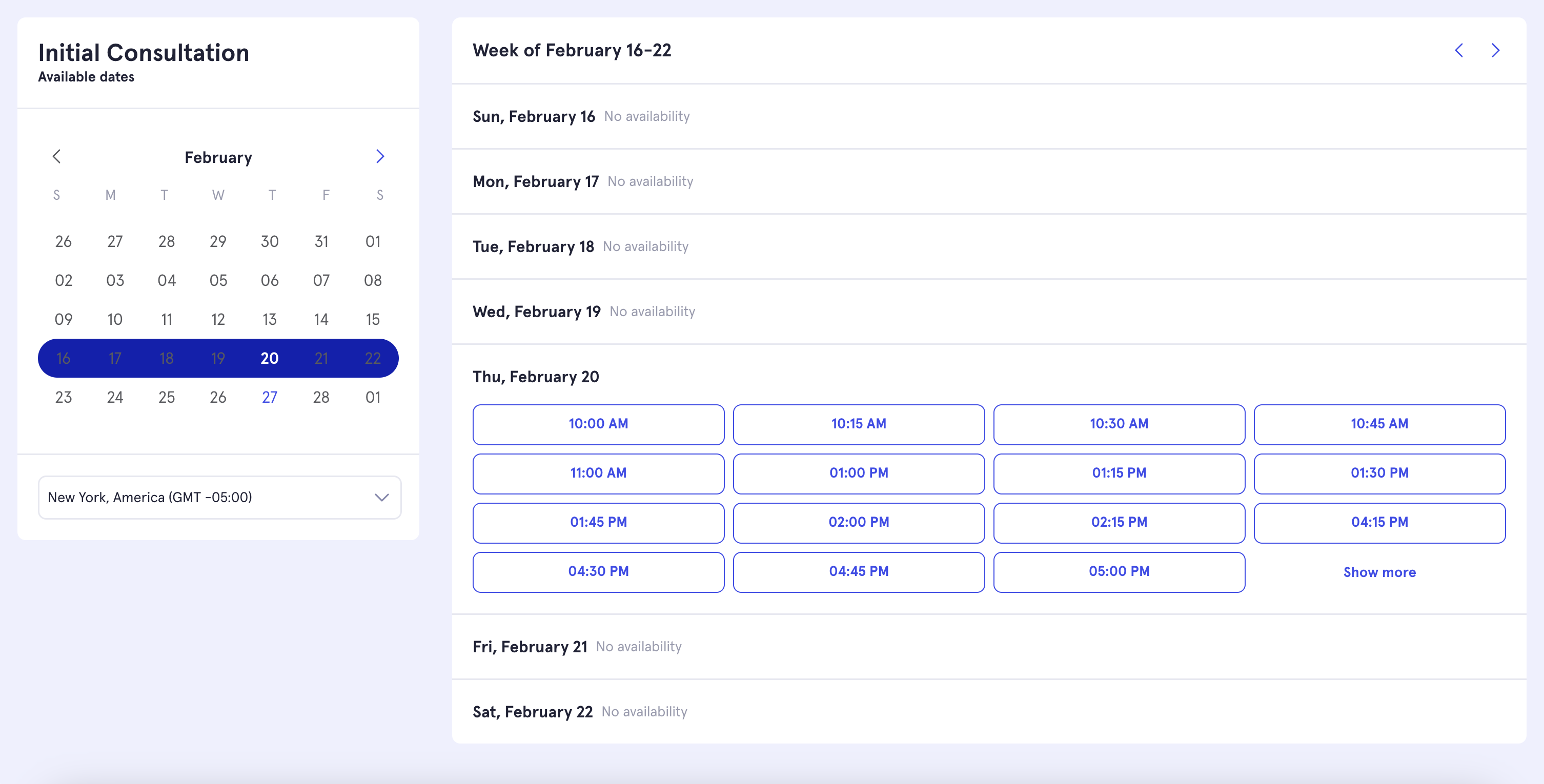 If you want to hide the calendar title, add this parameter:
* **`hideCalendarTitle`**
If you want to hide the calendar title, add this parameter:
* **`hideCalendarTitle`**
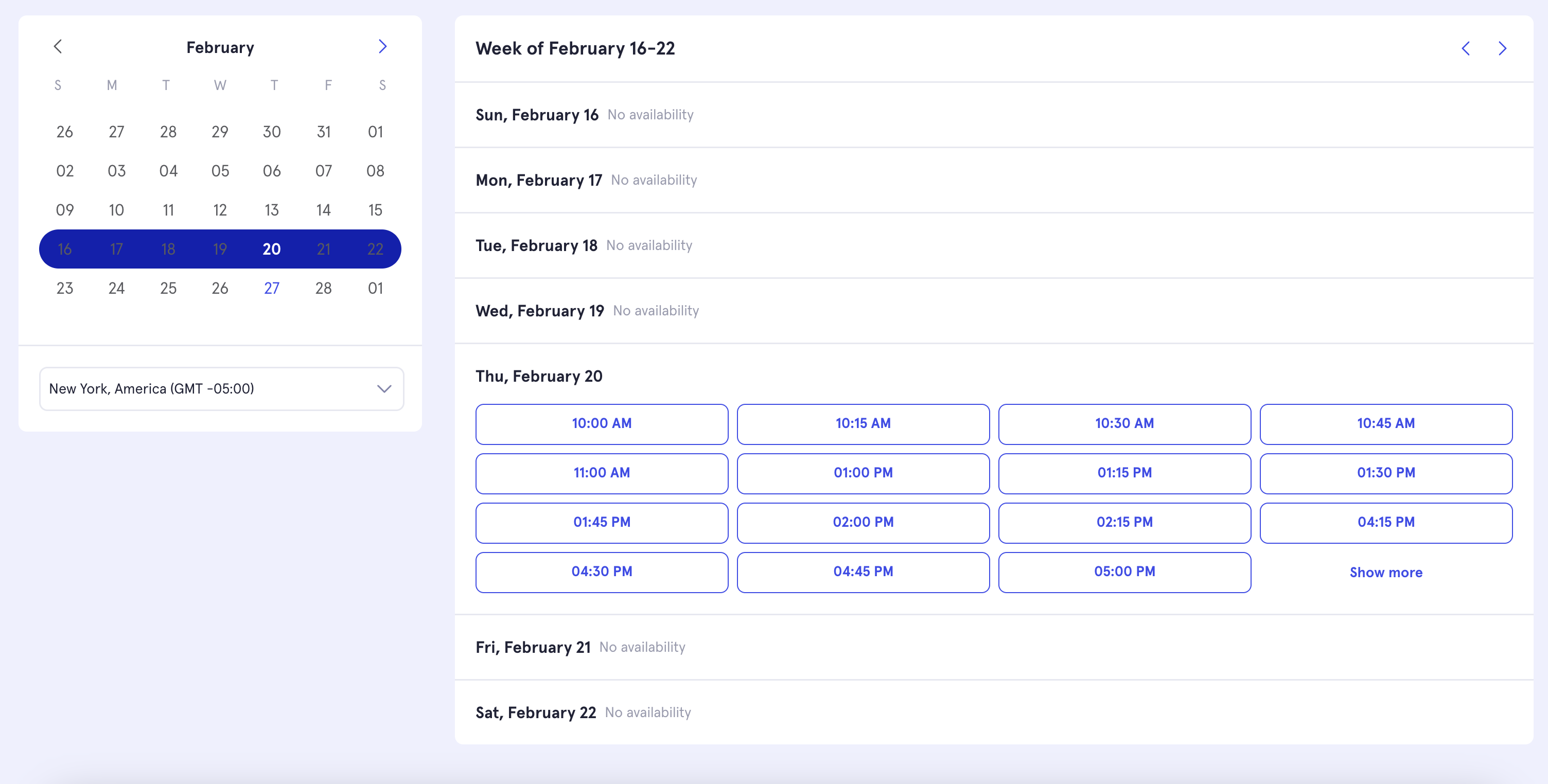 ### Example
You can choose which optional query parameters to include or leave out based on your specific needs. Here's an example of how to add all the parameters to your scheduling URL:
`https://questions.morf.health/schedule/basic-view?morfOrgId={{morfOrgId}}&schedulingApplication={{schedulingApplication}}&appointmentTypeId={{appointmentTypeId}}&patientId={{responder_UUID}}&state={{state}}&insurance={{insurance}}&specialties={{specialties}}&internalTags={{internalTags}}&randomizeOrder=true&hideState&hideInsurance&hideSpecialties&hideCalendarTitle`
Example of our test morf organization link:
[https://questions.morf.health/schedule/basic-view?morfOrgId=16a53f42-687c-4eb1-bd8b-27126485a7b7\&appointmentTypeId=172084\&schedulingApplication=HEALTHIE](https://questions.morf.health/schedule/basic-view?morfOrgId=16a53f42-687c-4eb1-bd8b-27126485a7b7\&appointmentTypeId=172084\&schedulingApplication=HEALTHIE)
## Scheduling Appointment
Currently, when the patient selects a desired time slot and clicks Confirm, the time slot details are returned as follows:
* `Formsort`: The time\_slot answer is set.
* `Iframe - Web`: The time slot message is sent to the parent window.
* `Iframe - React Native`: The time slot message is sent to the ReactNativeWebView.
If you're using `Formsort`, you can utilize an API variable to call the `Schedule Appointment` endpoint, as all the necessary data is now included in the response. More in the [corresponding section](/docs/morf_questions/schedule_appointment)
### Example
You can choose which optional query parameters to include or leave out based on your specific needs. Here's an example of how to add all the parameters to your scheduling URL:
`https://questions.morf.health/schedule/basic-view?morfOrgId={{morfOrgId}}&schedulingApplication={{schedulingApplication}}&appointmentTypeId={{appointmentTypeId}}&patientId={{responder_UUID}}&state={{state}}&insurance={{insurance}}&specialties={{specialties}}&internalTags={{internalTags}}&randomizeOrder=true&hideState&hideInsurance&hideSpecialties&hideCalendarTitle`
Example of our test morf organization link:
[https://questions.morf.health/schedule/basic-view?morfOrgId=16a53f42-687c-4eb1-bd8b-27126485a7b7\&appointmentTypeId=172084\&schedulingApplication=HEALTHIE](https://questions.morf.health/schedule/basic-view?morfOrgId=16a53f42-687c-4eb1-bd8b-27126485a7b7\&appointmentTypeId=172084\&schedulingApplication=HEALTHIE)
## Scheduling Appointment
Currently, when the patient selects a desired time slot and clicks Confirm, the time slot details are returned as follows:
* `Formsort`: The time\_slot answer is set.
* `Iframe - Web`: The time slot message is sent to the parent window.
* `Iframe - React Native`: The time slot message is sent to the ReactNativeWebView.
If you're using `Formsort`, you can utilize an API variable to call the `Schedule Appointment` endpoint, as all the necessary data is now included in the response. More in the [corresponding section](/docs/morf_questions/schedule_appointment)