> ## Documentation Index
> Fetch the complete documentation index at: https://docs.morf.health/docs/llms.txt
> Use this file to discover all available pages before exploring further.
# Workflows
> Sequences of actions that execute in response to events
# Overview
A workflow is a sequence of configurable **actions** triggered in response to **source** data arriving at Morf from a **third party application** .
Each time a workflow gets triggered, Morf generates a workflow **execution.** An **execution** describes the data that Morf received, the actions that occurred and the associated outcomes.
An **action** (or **node**) within a workflow is used to either control the path an **execution** takes, to fetch additional data from your integrated **third party applications, or** to store at or send data to an integrated application.
# Events
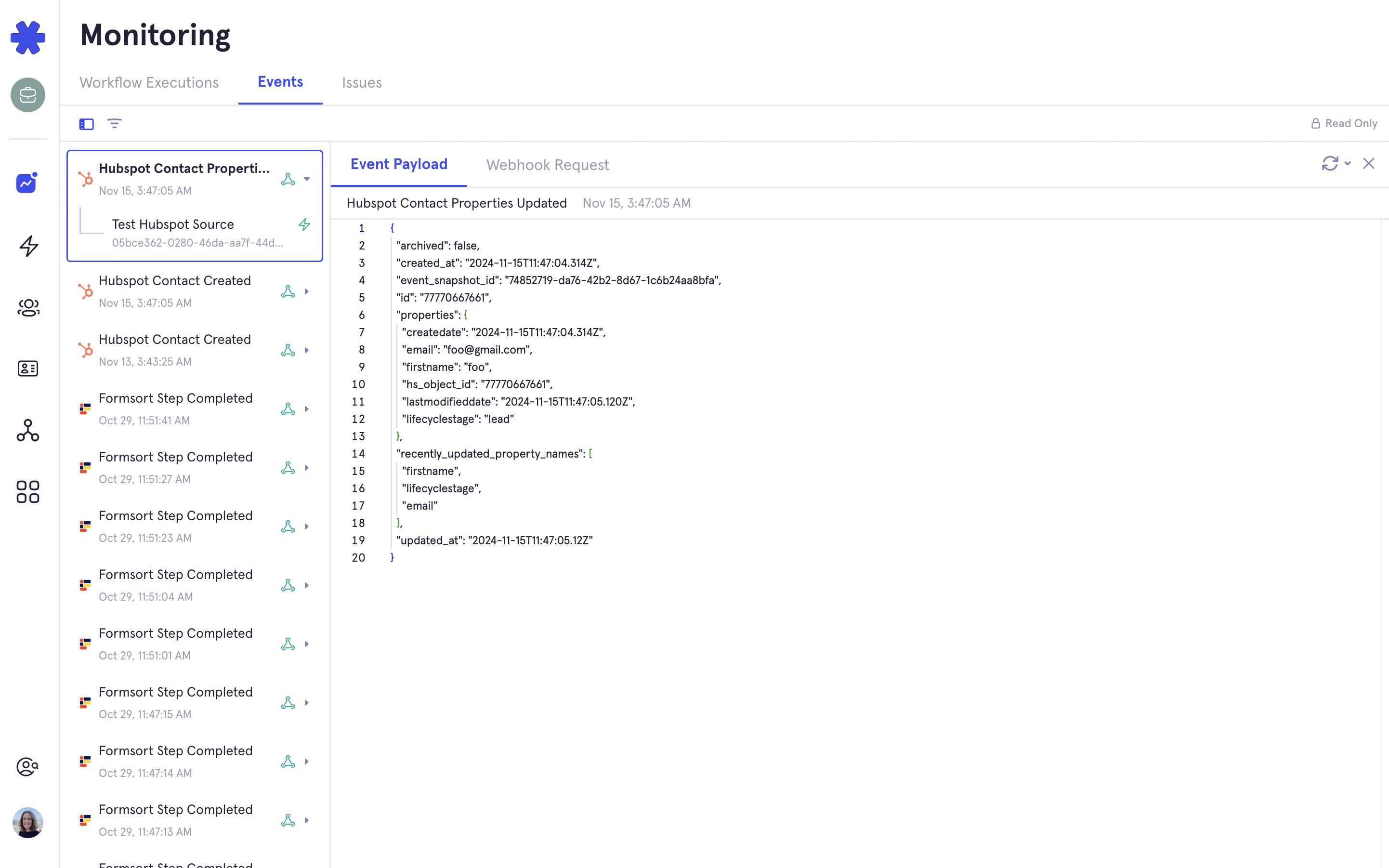
When Morf receives a **webhook** from a third party application, Morf processes that **webhook** and generates an **event**. That event data is then used to trigger a workflow, control the flow of an execution, and configure destination actions.
Example events: Healthie Patient Created, Formsort Step Completed
*You can see all of the events processed for your organization in the Morf dashboard under the Monitoring > Events tab.*
 ## Source events
[Event library](/docs/events/payloads/formsort/form_response)
# Actions
Each **action** (or **node**) of a workflow requires different configuration. Some **actions** are highly configurable and allow for the definition of parameters in a dynamic way.
There are built-in Morf actions that allow you to store data and control the flow of an execution. And then there are third party application actions that allow you to fetch from or store data in your integrated applications.
## Built-in Morf Actions
* **Profile lookup:** A profile lookup is used to determine which profile to associate the event and workflow execution with. Morf has recommended defaults for each source applications, but allows you to customize the lookup based on your needs and based on an individual workflow. *E.g.* for Formsort, you may want to use `responder_uuid` as a lookup for one flow, but `email_address` for a different flow.
* **Update profile properties**: This action allows you to store data from the source event to the [Morf Profile](/docs/morf_dashboard/profiles) as properties. There are many uses for storing data in properties, they allow you to use `email_address` for profile lookup, to stage data from a signup form to be used later when a record is created in an EHR, to store a tracking id, *e.g.* Google click id (`gclid`), *etc…*
* **Filters:** Filters allow you to control the path that a workflow takes using boolean logic. They allow you to trigger certain actions only if the specified expression is **`true`**, *e.g.* if an email address is submitted, create the contact in a CRM. We use the [Common Expression Language](/docs/libraries/cel) to express this logic.
* **Wait:** A wait, allows you to pause a workflow for a specified duration, *e.g.* if you want to wait until 24 hours before an appointment to trigger an action.
## Third Party Actions
[Action library \[coming soon\]](/docs/actions/coming_soon)
# Common Expression Langauge (CEL)
Morf uses a small configuration language designed to enable powerful and type-safe configurations of Workflows, it’s called [**Common Expression Language (CEL for short)**](https://github.com/google/cel-spec).
We use it for many of the core features of the **workflow builder**, such as:
* **Filters**: Controlling branching through boolean logic.
* **Waits**: Defining duration of pauses based on the dates/times in your data.
* **Calculated values**: Computing calculated values like **`first_name + " " + last_name`** with simple operators and custom functions.
The syntax should feel familiar to those with experience programming or using scripting languages. This enables us to define an ever-growing library of utility functions and allows us to type-check expressions for safety.
[**CEL Reference Library**](/docs/libraries/cel)
# FAQs
## What is this crazy filter expression?
e.g. `current_step_id.orValue("") == "booking_in_progress"`
This is Common Expression Language, which is the language we use to create conditional logic for a workflows. This example is checking to see if the `current_step_id` value on a `Formsort Step Completed` event is equal to the string “booking\_in\_progress.” The `.orValue("")` accounts for if `current_step_id` is not present on the event. More info on CEL [**here**](/docs/libraries/cel).
CEL can also be used to create calculated values, *e.g.* `date_of_birth.getAge(morf.now())` will return the number of years between `date_of_birth` and now.
## What are the different workflow statuses?
Each workflow has one of four statuses that controls whether it runs and how it appears in your dashboard.
* **Draft**: The workflow has unpublished changes in the Build tab. Changes are autosaved, but won't go live until you click Publish.
* **Published**: The workflow is live and active. All incoming events will trigger executions against this version.
* **Inactive**: The workflow won't be triggered by incoming events. It remains visible and accessible from the Workflows page in your dashboard.
* **Archived**: The workflow is permanently deactivated. It won't respond to incoming events, is no longer accessible from the dashboard, and cannot be reactivated.
Setting an active workflow to inactive or archived does not terminate any in-progress executions. To stop running executions, contact Morf support.
To archive, activate, and deactivate a workflow, click the ⋯ menu in the top-right corner of the workflow builder.
## Source events
[Event library](/docs/events/payloads/formsort/form_response)
# Actions
Each **action** (or **node**) of a workflow requires different configuration. Some **actions** are highly configurable and allow for the definition of parameters in a dynamic way.
There are built-in Morf actions that allow you to store data and control the flow of an execution. And then there are third party application actions that allow you to fetch from or store data in your integrated applications.
## Built-in Morf Actions
* **Profile lookup:** A profile lookup is used to determine which profile to associate the event and workflow execution with. Morf has recommended defaults for each source applications, but allows you to customize the lookup based on your needs and based on an individual workflow. *E.g.* for Formsort, you may want to use `responder_uuid` as a lookup for one flow, but `email_address` for a different flow.
* **Update profile properties**: This action allows you to store data from the source event to the [Morf Profile](/docs/morf_dashboard/profiles) as properties. There are many uses for storing data in properties, they allow you to use `email_address` for profile lookup, to stage data from a signup form to be used later when a record is created in an EHR, to store a tracking id, *e.g.* Google click id (`gclid`), *etc…*
* **Filters:** Filters allow you to control the path that a workflow takes using boolean logic. They allow you to trigger certain actions only if the specified expression is **`true`**, *e.g.* if an email address is submitted, create the contact in a CRM. We use the [Common Expression Language](/docs/libraries/cel) to express this logic.
* **Wait:** A wait, allows you to pause a workflow for a specified duration, *e.g.* if you want to wait until 24 hours before an appointment to trigger an action.
## Third Party Actions
[Action library \[coming soon\]](/docs/actions/coming_soon)
# Common Expression Langauge (CEL)
Morf uses a small configuration language designed to enable powerful and type-safe configurations of Workflows, it’s called [**Common Expression Language (CEL for short)**](https://github.com/google/cel-spec).
We use it for many of the core features of the **workflow builder**, such as:
* **Filters**: Controlling branching through boolean logic.
* **Waits**: Defining duration of pauses based on the dates/times in your data.
* **Calculated values**: Computing calculated values like **`first_name + " " + last_name`** with simple operators and custom functions.
The syntax should feel familiar to those with experience programming or using scripting languages. This enables us to define an ever-growing library of utility functions and allows us to type-check expressions for safety.
[**CEL Reference Library**](/docs/libraries/cel)
# FAQs
## What is this crazy filter expression?
e.g. `current_step_id.orValue("") == "booking_in_progress"`
This is Common Expression Language, which is the language we use to create conditional logic for a workflows. This example is checking to see if the `current_step_id` value on a `Formsort Step Completed` event is equal to the string “booking\_in\_progress.” The `.orValue("")` accounts for if `current_step_id` is not present on the event. More info on CEL [**here**](/docs/libraries/cel).
CEL can also be used to create calculated values, *e.g.* `date_of_birth.getAge(morf.now())` will return the number of years between `date_of_birth` and now.
## What are the different workflow statuses?
Each workflow has one of four statuses that controls whether it runs and how it appears in your dashboard.
* **Draft**: The workflow has unpublished changes in the Build tab. Changes are autosaved, but won't go live until you click Publish.
* **Published**: The workflow is live and active. All incoming events will trigger executions against this version.
* **Inactive**: The workflow won't be triggered by incoming events. It remains visible and accessible from the Workflows page in your dashboard.
* **Archived**: The workflow is permanently deactivated. It won't respond to incoming events, is no longer accessible from the dashboard, and cannot be reactivated.
Setting an active workflow to inactive or archived does not terminate any in-progress executions. To stop running executions, contact Morf support.
To archive, activate, and deactivate a workflow, click the ⋯ menu in the top-right corner of the workflow builder.